Secure Encrypted Transfer
Files are encrypted in your browser before transmission and decrypted locally by Secreto Hub on the TV.
Local-first file transfer
Secreto Hub securely transfers files from your phone, tablet, or computer browser to Android TV or Google TV over the same local network. Files are encrypted in your browser before transmission, with no SecretoTools cloud upload or account required.
Your files stay on your local network.
Designed around the local network
Purpose-built for a simple browser-to-TV workflow, with the privacy and clarity you expect from a local tool.
Files are encrypted in your browser before transmission and decrypted locally by Secreto Hub on the TV.
Files do not pass through SecretoTools servers or cloud storage.
Works from modern browsers on phones, tablets, and computers.
Designed specifically for Android TV and Google TV.
Files are encrypted and sent in authenticated 256 KiB chunks, with available storage checked before receiving.
Send multiple files in one batch. If one file fails, the remaining files continue, with failure details and retry for failed files only.
Transfer performance depends on the television, sending device, Wi-Fi, router, file size, and local network conditions.
Fewer steps. Less friction.
Traditional file transfer
Secreto Hub
Browser to television
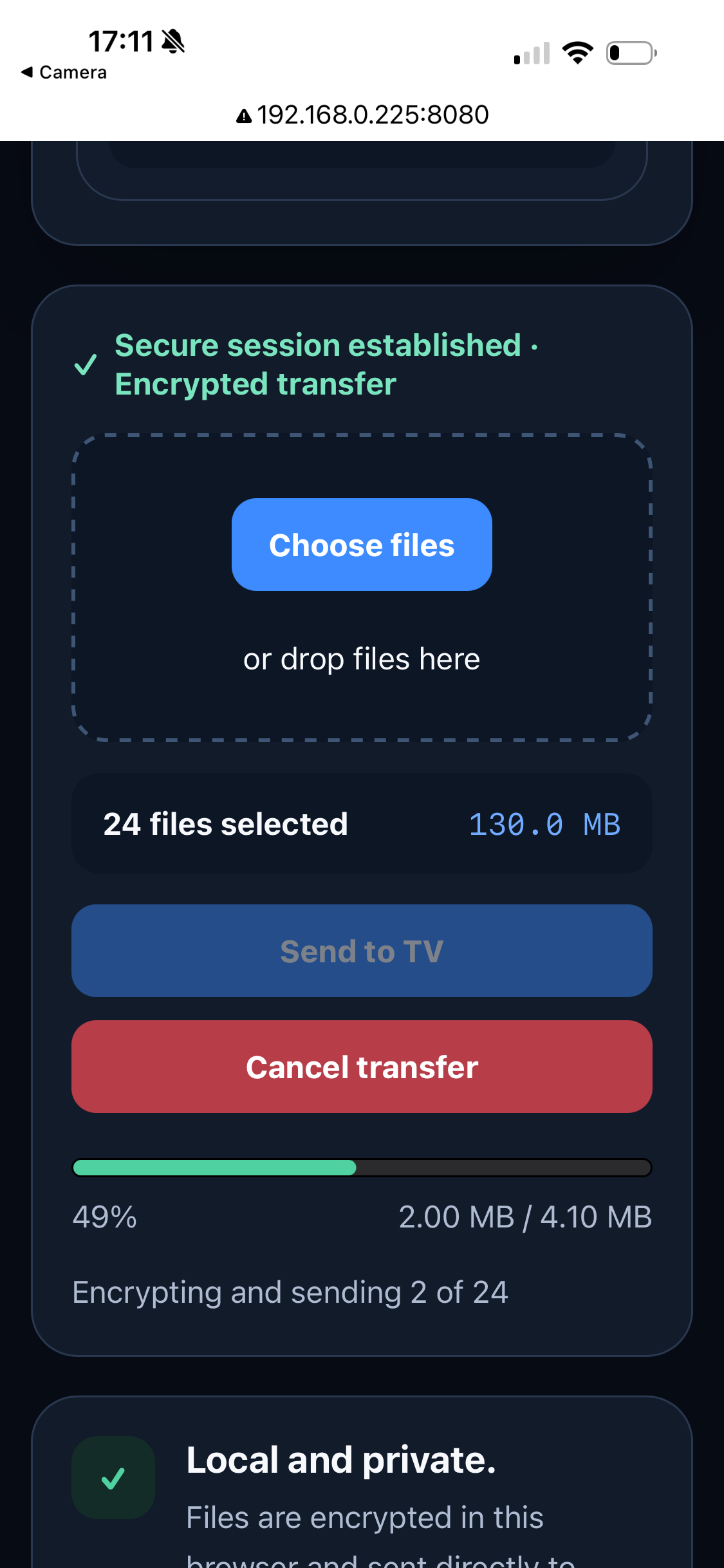
Open the local address shown by Secreto Hub, establish the session-specific pairing, choose one or more files, and send them securely to your television.
Four clear steps
From launching the receiver and pairing securely to finding completed files in History.
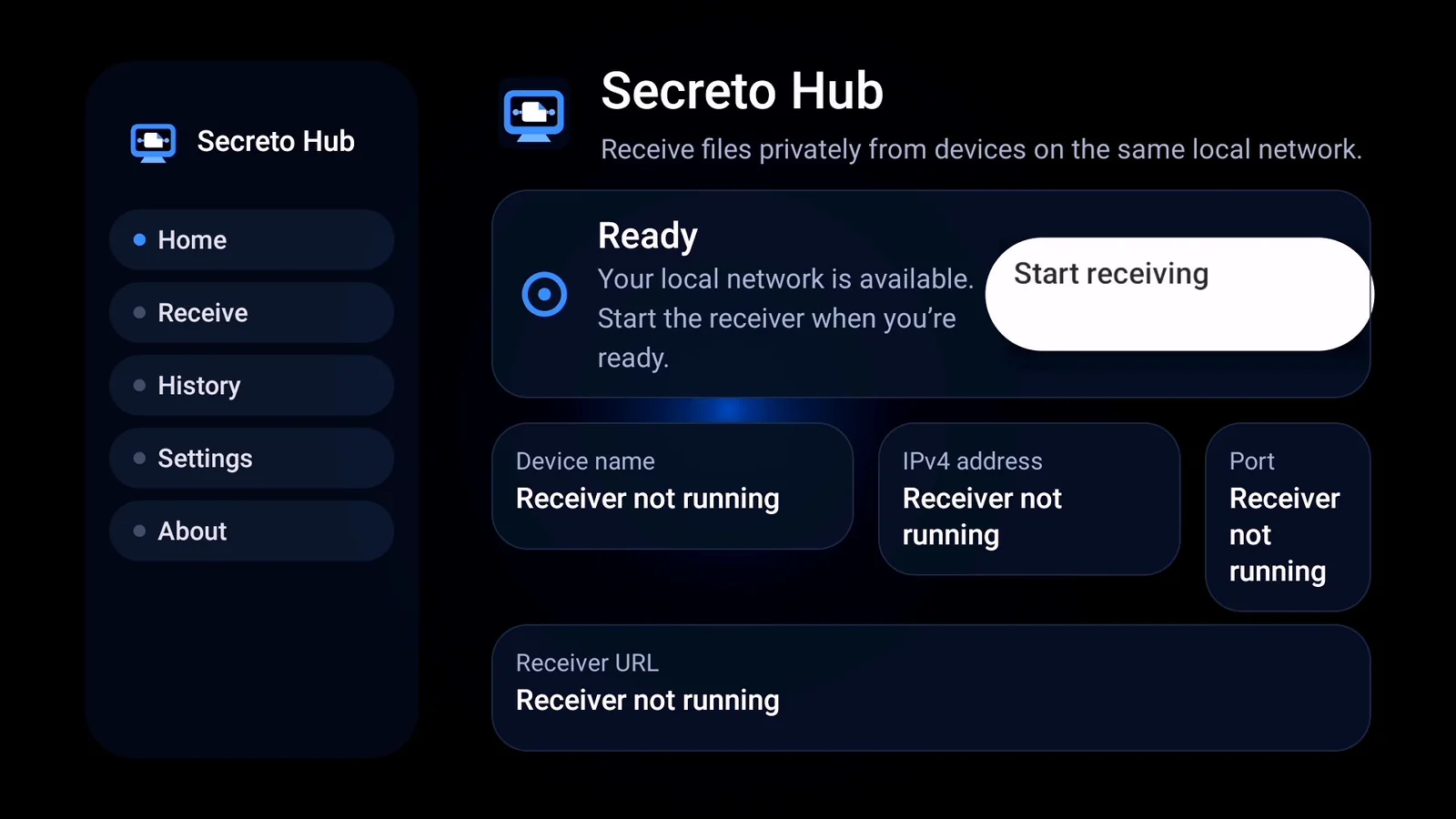
Launch the application on Android TV or Google TV.
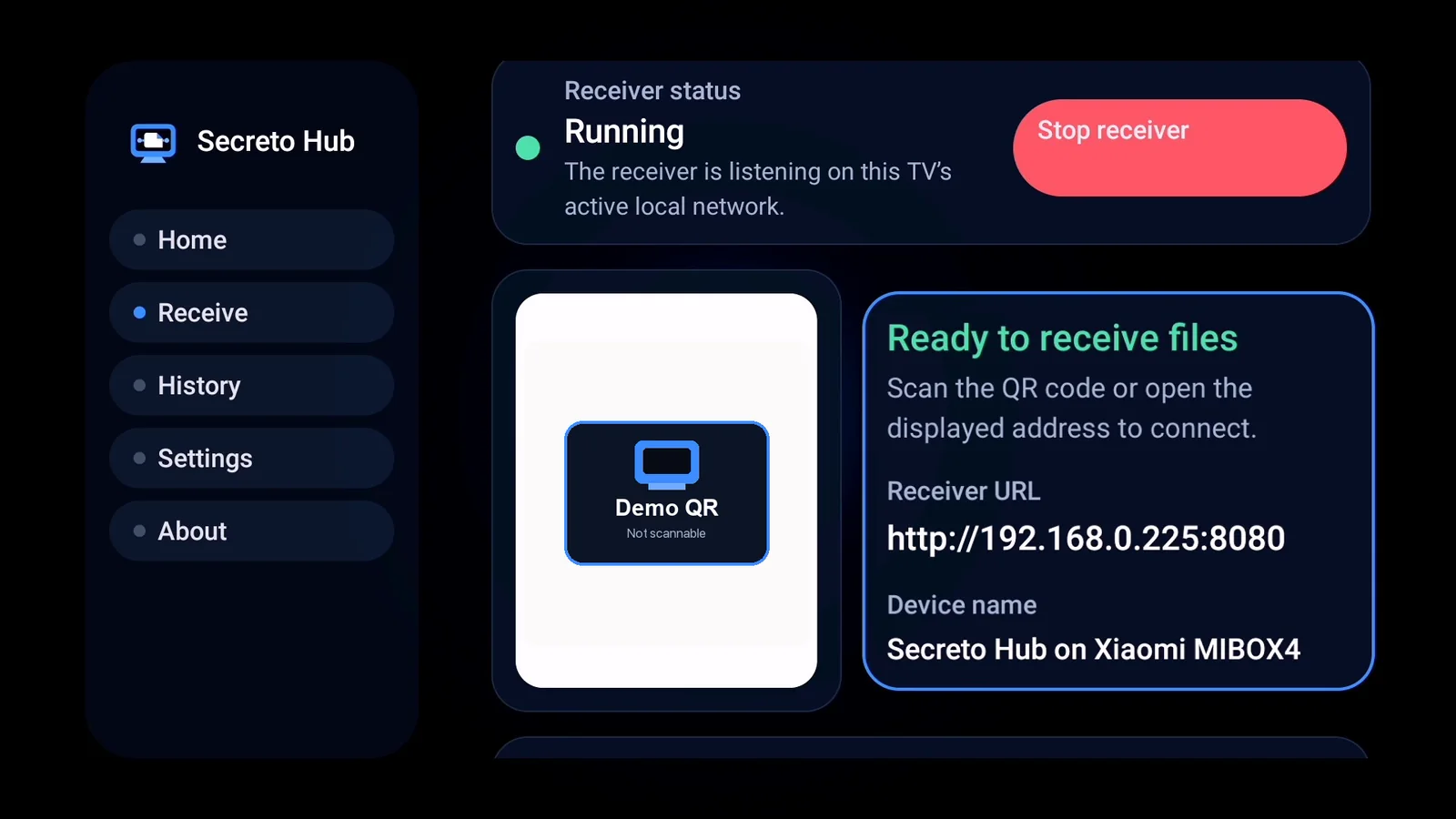
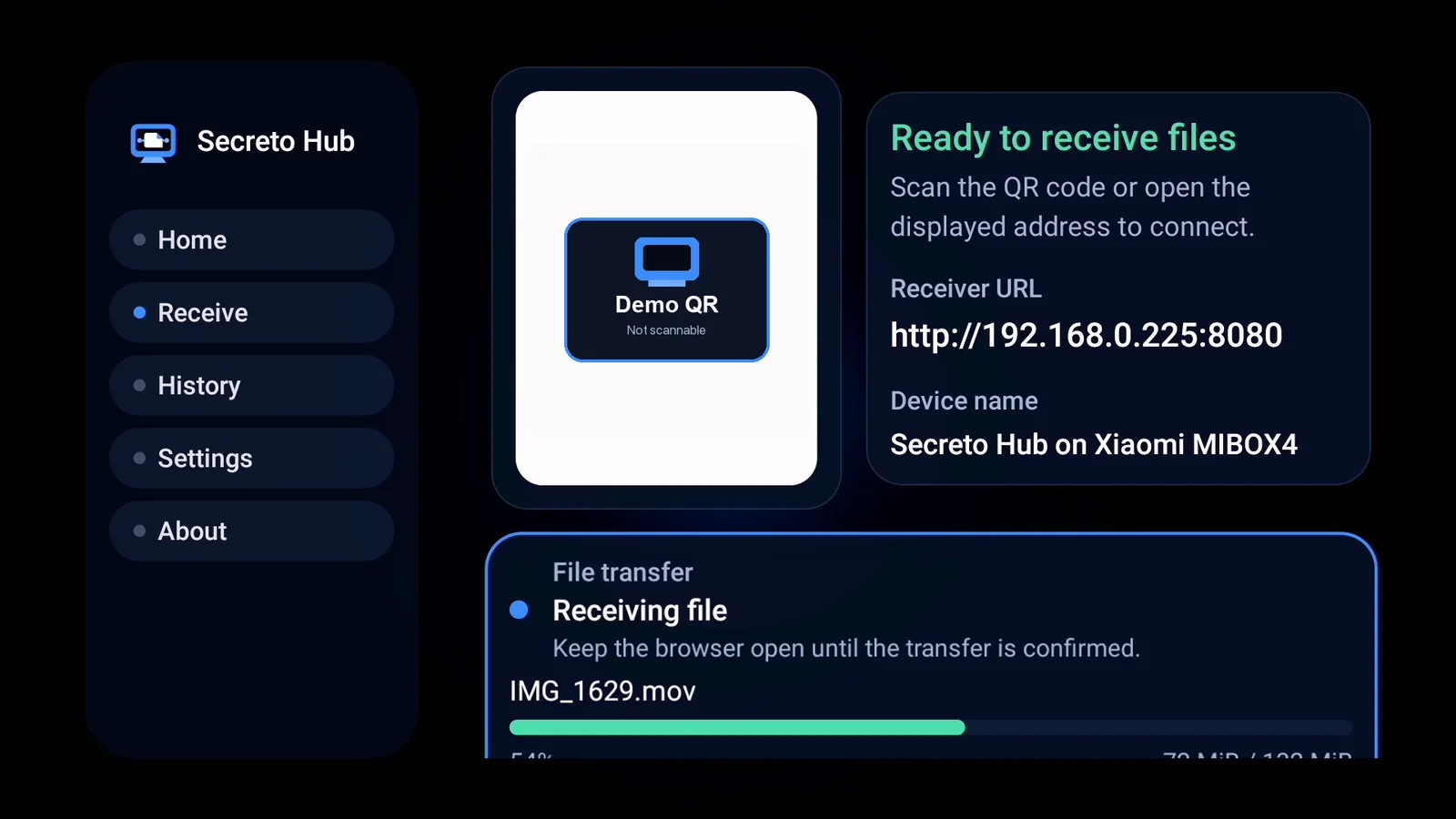
The television displays a local URL, QR code, and session-specific pairing information.
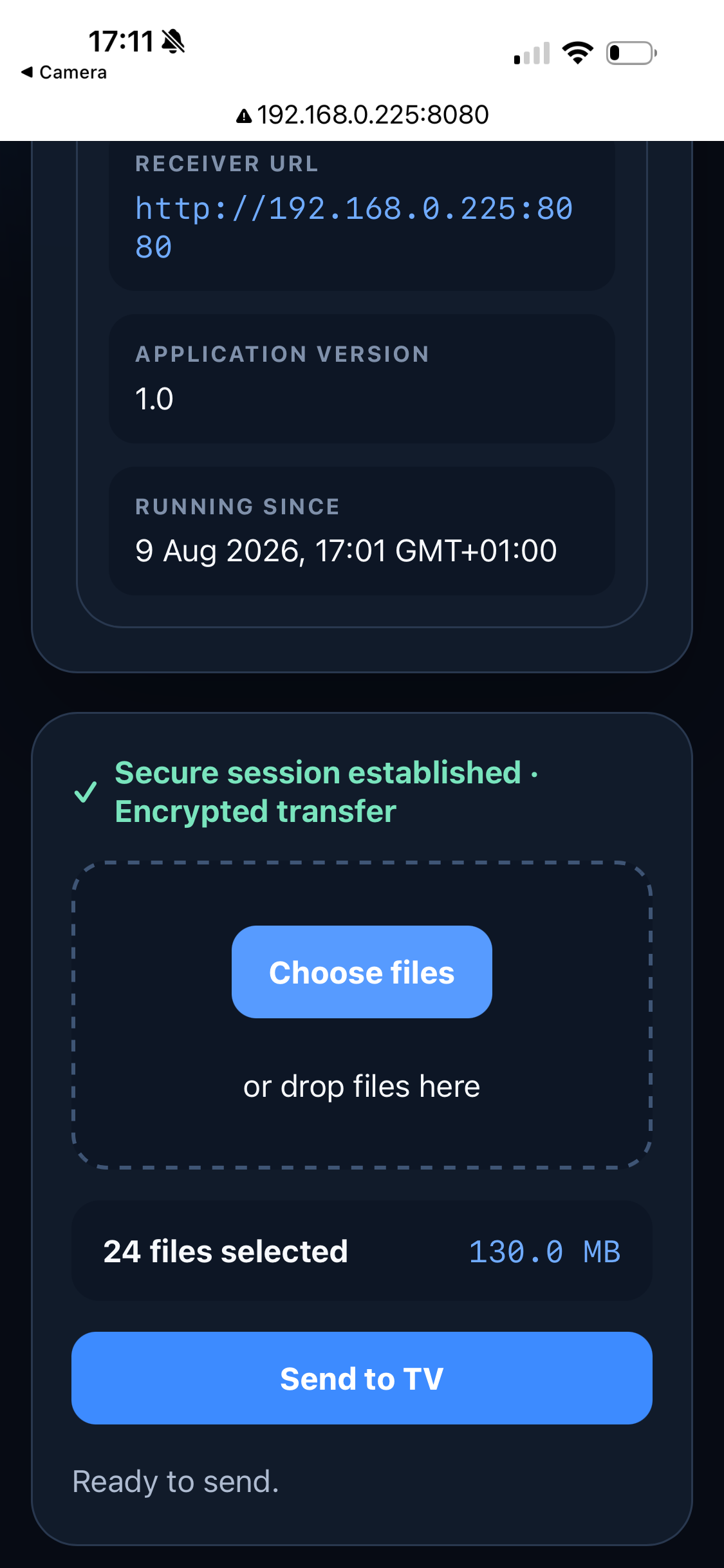
Open the address, establish the secure session, and select one or more files.
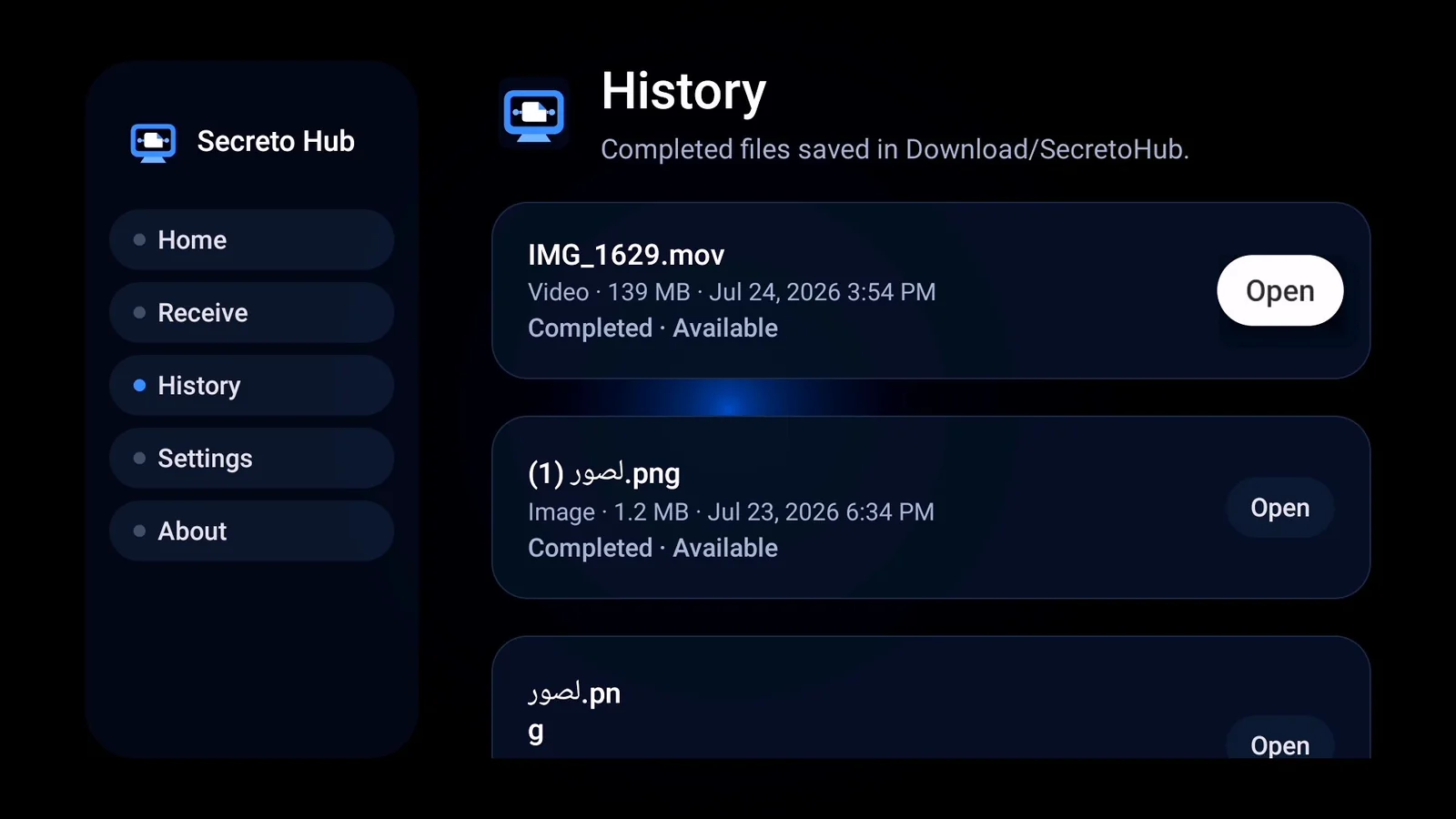
Files are encrypted in the browser, decrypted locally on the TV, saved, and listed in History.
Authentic product interface
Explore real application and browser screens from Secreto Hub 1.0. Open any image to view the complete interface.
Version-aware implementation
Version 1.0 is configured for Android TV 8.0/API 26 and later, with version-specific storage and local-network permission handling.
Implemented behavior
Performance depends on the sending device, television, Wi-Fi, router, file size, and local network conditions. Compatibility is not universal.
Private by architecture
Secreto Hub is designed to move selected files between devices on the same network. File contents and transfer metadata are encrypted in the sender browser and decrypted locally by Secreto Hub on the television. It does not require an account or a SecretoTools-operated cloud upload.
Read the Privacy PolicyTelevision-first
Requires Android TV 8.0/API 26 or later. Device, storage, browser, and network behavior can vary.
Storage permission is required to publish received files.
Files are published without the legacy storage permission.
Runtime local-network permission is required to start receiving.
Compatibility may vary by television manufacturer, Android version, available storage, browser, and local network configuration.
Common questions
Everything you need to understand the local browser-to-TV workflow.
View all questionsNo Internet connection is required for a local transfer. The sending device and television must be connected to the same local network.
No companion mobile application is required. Open the receiver address in a modern browser on the same network.
No. Secreto Hub transfers encrypted file data over the local network and does not route transferred files through SecretoTools-operated cloud storage.
It can work from modern browsers on iPhone, tablets, Android phones, and computers when they are on the same local network as the television.
Completed files are decrypted and saved locally on the television in the Download/SecretoHub folder and appear in History.
Yes. Files are encrypted in the sender browser before transmission and decrypted locally by Secreto Hub on the television.
Yes. Secreto Hub supports multi-file batches. If one file fails, the remaining files can continue, and failed files can be retried separately.
No. Received files are not opened or executed automatically.
Version 1.0 ready
Version 1.0 is configured for release. Public store availability is announced separately when confirmed.
Product walkthrough
A complete walkthrough and product demonstration will accompany the official release.